
Cloud Functions for Firebase is a serverless framework that lets you automatically run backend code in response to events triggered by background events, HTTPS requests, the Admin SDK, or Cloud Scheduler jobs. It supports three languages: Javascript, Typescript, and Python.
Steps to Deploy to Firebase Functions:
- Go to https://firebase.google.com and signup with your Google account.
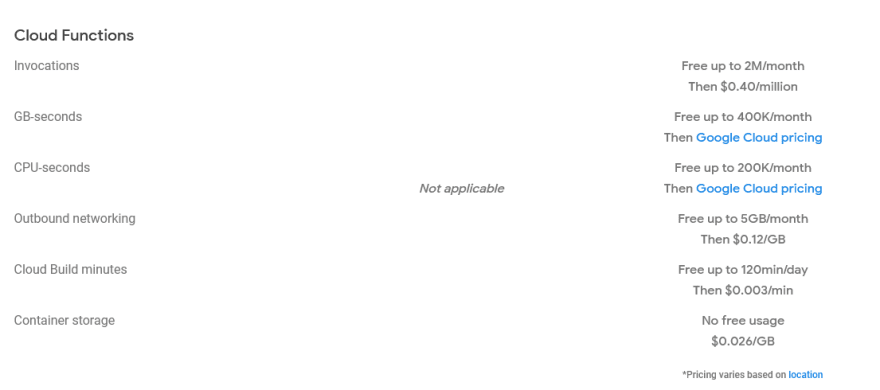
- Note: You need to upgrade to Blaze plan to use Firebase functions. If you are a beginner then you may be charged almost to zero because Firebase Functions allows usage of free quota and then charges you based on your usage if you exceed the free quota.
-
- Create a new Firebase Project and click yes if you want to add analytics to your project.
- Navigate to Functions options from the left-side vertical menu.
- Create a new Function and it will ask you to install packages.
-
npm install -g firebase-tools firebaseor
yarn add -g firebase-tools firebase
-
- Now open your Visual Studio Code(or any other code editor) and create a new Node.js project or use your existing one if you already have one.
- Open Terminal and run
npm install -g firebase-tools firebase - Run:
firebase login- It will redirect you to the webpage. Login with your Google account.
- You will see logged in successfully message in your code editor(I'm using Visual Studio code)
- Run:
firebase init- Follow the steps to initialize the new Firebase project or use your existing one.
- Are you ready to proceed? Yes
- Which Firebase features do you want to set up for this directory? Press Space to select features, then Enter to confirm your choices.
Functions: Configure a Cloud Functions directory and its files - Please select an option: Use an existing project
- Select a default Firebase project for this directory: CHOOSE_YOUR_PROJECT
- What language would you like to use to write Cloud Functions? JavaScript
- Do you want to use ESLint to catch probable bugs and enforce style? No
- Do you want to install dependencies with npm now? No
- After that, you will see a message
Firebase initialization complete! - This will create a functions folder and two files i.e. firebase.json and .firebaserc
- In firebase.json, change the source to “.” (Node.js project directory).
-
{
  "functions": [
    {
      "source": ".",
      "codebase": "default",
      "ignore": [
        "node_modules",
        ".git",
        "firebase-debug.log",
        "firebase-debug.*.log",
        "*.local"
      ]
    }
  ]
}
-
- In .firebaserc, your project name is mentioned which you have used to initialize your project.
- If you have mistakenly chosen a different project then re-run firebase init and follow the above steps.
- Follow the steps to initialize the new Firebase project or use your existing one.
- Run in terminal:
npm i firebase-admin firebase-functions - In your app.js or server.js, add these lines:
-
	const functions = require('firebase-functions');

	// Write your code here

	exports.api= functions.https.onRequest(app); -- put this in last line
-
- In your functions/package.json, check the node version and if it is different from the node version that you are using then use the funtions/package.json node version.
- In my case, My system was using node version 20 and in firebase/package.json, the node version was 18 so I downgraded the node version to 18 in my system and used the same in my Node.js project's package.json
-
  "engines": {
    "node": "18"
  },
-
- In my case, My system was using node version 20 and in firebase/package.json, the node version was 18 so I downgraded the node version to 18 in my system and used the same in my Node.js project's package.json
- In your package.json, add this in scripts: "deploy": "firebase deploy --only functions:api"
-
"scripts": {
    "start": "node app.js",
    "deploy": "firebase deploy --only functions:api"
  },
-
- Make sure you do not use process.env.PORT in your app.js file otherwise you will see an error when deploying your code.
- You can hardcode the value as shown below:
-
const PORT = 8183;  // Use any value like 8183, 8302,8105 etc
app.listen(PORT, console.log("Server started at " + PORT));
-
- You can hardcode the value as shown below:
- Now you can delete the functions folder as we don't need this anymore.
- Finally, Run:
npm run deploy - It will take a few seconds and then your node.js will be deployed to Firebase functions.
- If you get an error similar to the below error then change the PORT value and re-run
npm run deploy:-
Error: listen EADDRINUSE: address already in use :::8011
    at Server.setupListenHandle [as _listen2] (node:net:1817:16)
    at listenInCluster (node:net:1865:12)
    at Server.listen (node:net:1953:7)
-
- If you get an error similar to the below error then change the PORT value and re-run
- If everything is fine then you will see the below message:
-
Deploy complete!

Project Console: https://console.firebase.google.com/project/YOUR_PROJECT_NAME/overview
-
- Go to Firebase and go to Functions, you will see your backend URL. You can test by hitting the URL in the browser.
In this blog, we have successfully deployed our Node.js app to Firebase Functions. If you still facing the issue then put your comment. I'll try my best to help you. And if you like this blog then leave your comment and like this blog.
Happy Coding !! 😊
